Top News & Tutorials
Your Go To for Card Making, Rubber Stamping, and Paper Crafting
-
Oct 04, 23 | 6:11 am
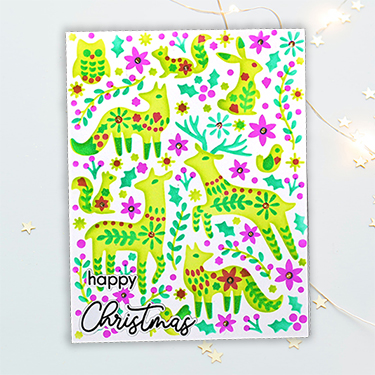
Create precision foiled details with no machine needed with today's Precision Foiling With Glue tutorial by Lydia Fiedler. Create precision foiled details with no machine needed with today's Precision Foiling With Gl...
-
Sep 06, 23 | 5:08 am
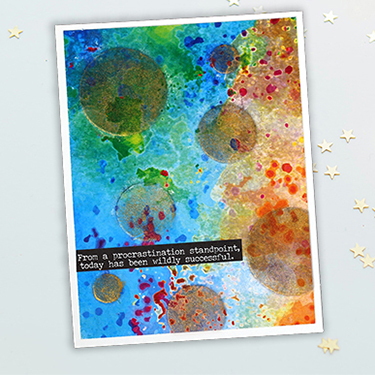
Create projects with texture, pattern and transparency with today's Rice Paper Basics tutorial by Lydia Fiedler.
Create projects with texture, pattern and transparency with today's Rice Paper Basics tutoria...
-
SMALL.png)
Aug 30, 23 | 10:00 am
The Splitcoast team comes to the community with some news and some hard changes today, as well as an appeal for your help. The Splitcoast team comes to the community with some news and some hard changes today, as well ...
-
Jul 05, 23 | 4:00 am
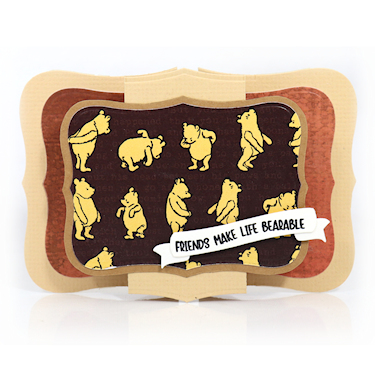
Create a shaped folded card with today's Layered Window Frame updated tutorial by Dina Kowal.
Create a shaped folded card with today's Layered Window Frame updated tutorial by Dina Kowal....
|